Got Questions?
Frequently Asked Questions
Everything you need to know about Venue: Relaxing Design Game. Can't find your answer? Reach out below.
🔥 Popular
What is the new Merge Minigame (Garden Party & Outdoor Cinema)?
🌸 Garden Party and Outdoor Cinema are two themes of the new merge minigame. The look changes from theme to theme, but the gameplay is exactly the same: you merge identical items to complete your board and earn rewards along the way. The minigame unlocks once you reach level 13 and is available from time to time, so keep an eye out for when it returns!
---
🧩 How to Play
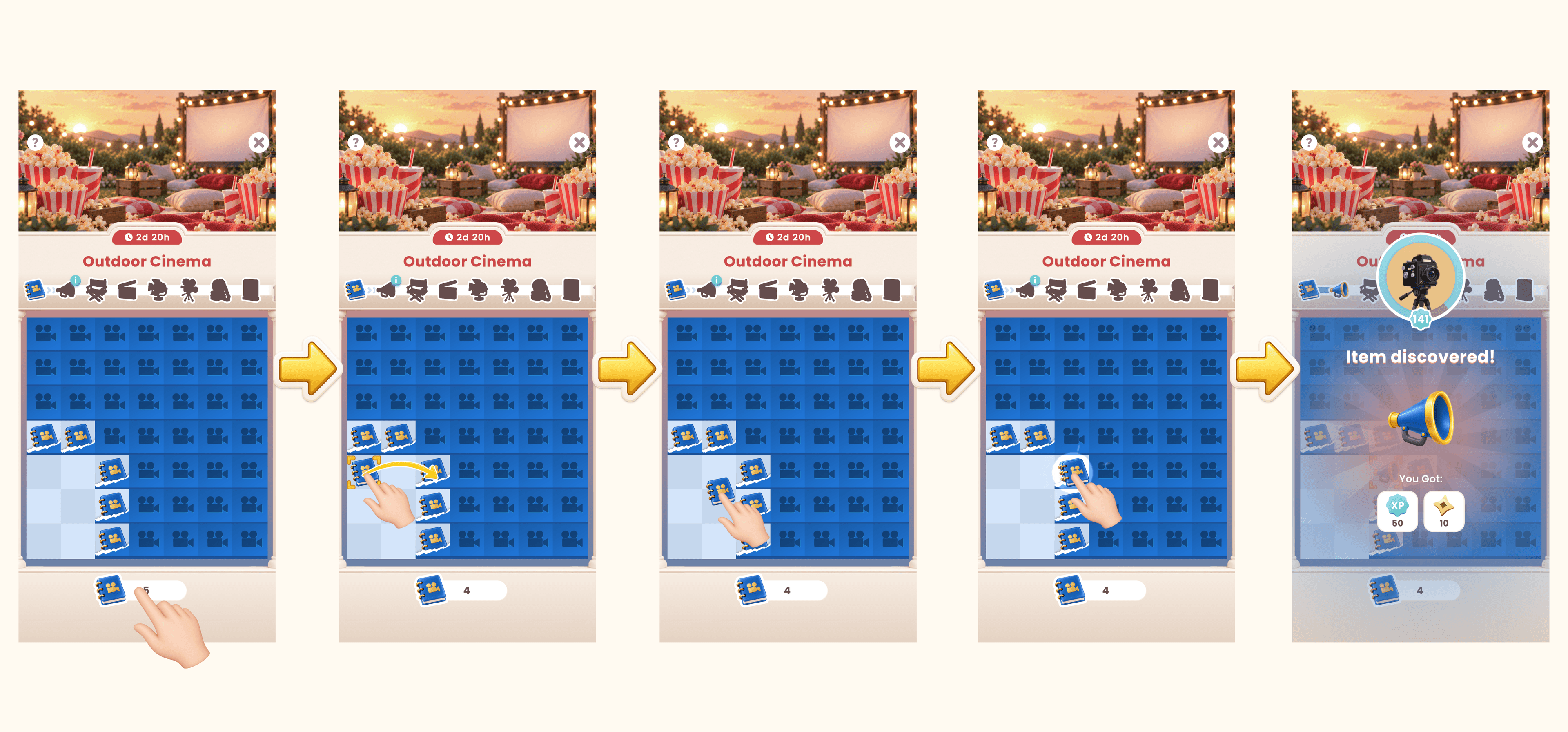
You start by collecting starter items, then tap them at the bottom of your screen to spread new items across your board. Once the items are on your board, just drag one of them onto another item of the same kind. When they come together, they combine into a higher-tier item. Keep merging identical items this way to climb through the tiers and earn fantastic rewards along the way!
Not sure which items go together? When you drag an item on top of another one that it can merge with, the item will glow to let you know it is a valid move.
Some items can even produce additional items when you merge them, like tea bags, cupcakes or popcorn kernels. You can merge those together too for extra rewards.
Once an item reaches its maximum tier, you will see it shining with a star. That is the time to double-tap it to collect your rewards!
---
🌱 How to Earn More Starter Items
Need more items to spread onto your board? You can earn them by submitting designs, completing missions, watching an ad, or through special offers that appear only while the event is running.
---
🔲 Different Tiles
Some tiles on your board work differently:
- Covered tiles are locked for now. You cannot merge on them before knowing what they are. Merge something next to them to reveal the surprise!
- Some tiles show a half-revealed item that cannot move, but you can still drop the same item on top to merge it and free the tile.
- All other tiles are free, so you can move items around however you like.
---
🎁 What Are the Rewards?
You get rewards every time you merge, and finishing tiers gives you even more. Coins and Gem Shards also show up right on your board. Double-tap them to collect, or merge two of the same to turn them into a bigger reward. Tap the info icon at the top anytime to see what is left to earn.
---
❗ Board Full
When your board is full, you cannot add any more items until you make some space. To free up space, keep merging identical items together!
---
🏁 How to Complete the Event
To complete the event, reach the final item tier on your board. Do not forget to collect any rewards left on your board, such as Gems or Coins, and we will see you at the next minigame!
🧩 Gameplay
What are Coins and how do I earn them?
🪙 Coins are the main currency in the game.
---
✨ How to Use Coins
They are used for obtaining the different gorgeous design items while you decorate rooms.
---
🎯 How to Earn Coins
You can earn coins in various ways, by completing events, spinning the wheel, watching ads after completing an event or daily bonus from the store, collecting them as reward from design pass and more.
What are Gems and how do I earn them?
💎 Gems are a premium currency in Venue used to access exclusive features and items.
---
✨ How to Use Gems
- Buy exclusive décor items during design events.
- Speed up timers, like in the Decor Box, Spinning Wheel or quests.
- Unlock certain premium rewards in events or passes.
---
🎯 How to Earn Gems
- Receive gems as rewards for high star ratings on your designs.
- Earn them through Live Events, Chapters, or the Design Pass.
- Occasionally available via the Decor Box or special offers.
💡 Gems are harder to earn than coins, so use them wisely!
What are Paintbrushes and how do I earn them?
🖌️ Paintbrushes in Venue are a special currency used exclusively for Stylebook rooms. They are the green icon in the game. They are used to unlock and decorate Stylebook rooms and items, which are long-term design challenges separate from daily events.
---
🏡 How to Use Paintbrushes
When working on Stylebook rooms, you’ll need paintbrushes to place or unlock items. They do not expire and can be saved up over time.
---
🏆 How to Earn Paintbrushes
You earn paintbrushes after your designs are rated in regular design events. The higher your star rating, the more paintbrushes you receive.You can also get them from Ladder Offers (a bundle).

What is my Inventory and how do I use my items?
Your Inventory in Venue is where all your collected items are stored. These include furniture, decor, and other pieces you’ve unlocked through events, the Design Pass, or rewards.
---
🧰 How to Access Inventory
- Tap the profile/avatar icon in the bottom-right corner of the main screen.
- From there, you can view all the items you've collected.
---
🛋️ How to Use Items from Inventory
- When designing a room, if a design event supports inventory use, eligible items will appear with a small number (like “1”) in the selection menu.
- You can use these items for free, they won’t cost you any coins or gems.
- Not all events allow Inventory items, so this option may not always appear but you will encounter many events where you are able to use them.
📝 Note: Items in your Inventory are reusable only in events that support it.
What is voting and how is my voting score calculated?
After you submit a room design in Venue, it enters the voting phase. During this time, other players will vote on your design by comparing it with others in the same event.
---
- Peer Voting
- Your design is shown side-by-side with others, and players vote for the one they like best.
- You can also vote on other players’ designs — by doing so, you get a small amount of XP (Experience Points).
---
- Scoring
- The number of votes your design receives determines your star rating (1 to 5 stars).
- More votes → score moves closer to the highest possible rating.
- Fewer votes → score moves closer to the lowest possible rating.
The exact score is somewhere in between, depending on how many players voted for the design.
---
- Rewards
- Higher star ratings earn you more coins, gems, and paint brushes.
---
- Final Results
- You can see how your design performed once voting ends — this usually takes a few hours after submission.
- You can claim your voting reward and then see the designed event in your Portfolio.
✅ Tip: Try using well-coordinated colors and matching styles for a better chance at earning higher scores!

What are XP points and how do I earn them?
- XP (Experience Points) in Venue help you level up in the game, unlocking new features and rewards as you progress.
- It shows how much you've played and participated in the game. As you earn more XP points, your player level increases, you get rewards like Coins, Gems and Items, and you unlock more exciting content to participate in!
---
📈 How to Earn XP
- Submitting designs in events and Stylebook rooms
- Voting on other players' designs
- Completing quests and challenges
- Collecting rewards from the Design Pass or Live Events
The more you play, the more XP you'll gain! You can monitor your XP progress in your Player Profile tab (bottom right icon with your avatar in it)
What are Replayable events?
🔁 Replayable Events are design challenges that have already been created and designed by players in the past ✨
With this feature, these events can reappear in your game, giving you a chance to redesign them in your own style 🎨
---
What is the “Redesign” option?
When a Replayable Event shows up, you’ll see a Redesign option. This lets you:
- Create a completely new version of the room 🛋️
- Try different styles, items, and layouts
- Improve or experiment with your design ideas 💡
---
- What is the “Reroll” option?
- Not feeling the current event? No problem! The Reroll option lets you swap the current Replayable Event and get a different event to redesign instead.
---
- Why use Replayable Events?
- Practice and improve your design skills 🧠
- Explore new creative ideas 🎨
- Enjoy more content, even from past events 💖
Have fun redesigning and discovering new styles! ✨
What are Stylebook rooms?
Stylebook rooms are the rooms you see on the main screen. In order to design them, you need to earn Paintbrushes. Items in Stylebook do not cost anything besides the previously mentioned Paintbrushes.
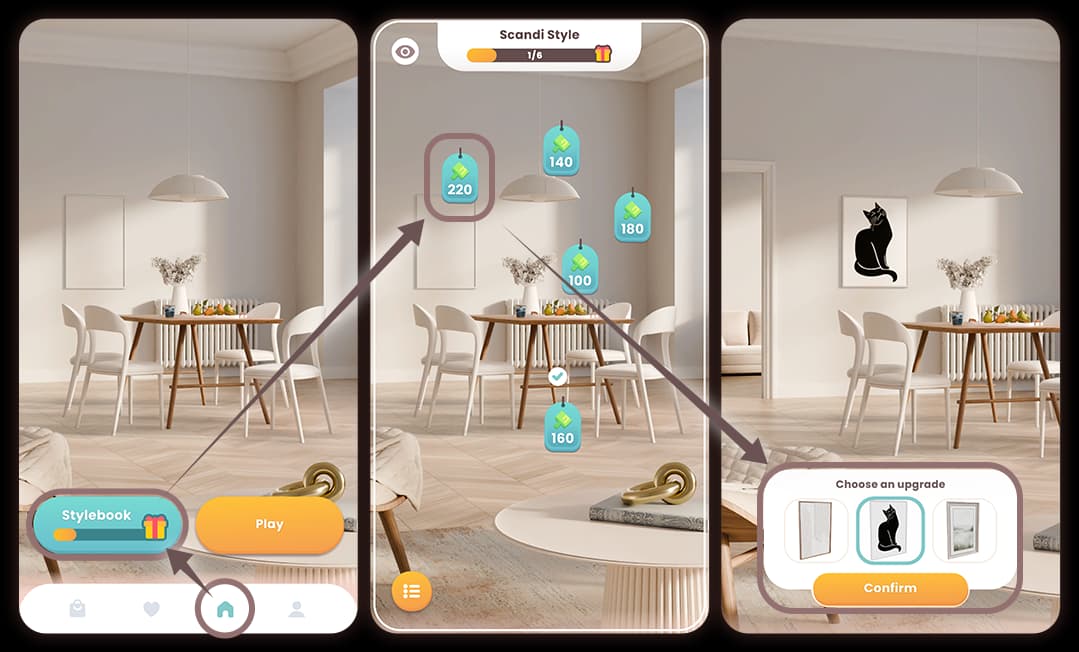
When will I get more Stylebook rooms?
If you completed all the currently available Stylebook rooms - congratulations! 💛
- Our small team is hard at work towards delivering the next exciting room along with new design styles for you to discover, so be sure to check back soon for more content.
- Until then, keep enjoying the game and your Venue design journey!
Is there a space limit for items in the Inventory?
- No, there is no limit for items you collect in your Inventory.
- If you notice anything missing, please reach out to our Customer Support team at support-venue@superbloomgames.com
What is a Design Pass?
The Design Pass is a seasonal reward system in Venue that lets you earn prizes by completing design challenges and events.
How it Works
- As you submit designs, you earn Design Pass Points.
- These points unlock tiers on the Design Pass, where you collect rewards like coins, gems, XP points, and inventory items..
Free vs. Premium
All players get access to the Free track of rewards.
You can buy the Premium Design Pass to unlock extra rewards at each tier, including exclusive items only available to Premium users.
Do I have to buy the Design Pass every season?
- No, you don't need to buy it every time.
- Each new Design Pass season includes a free track that anyone can enjoy.
- However, if you want to get more rewards and exclusive items, you can choose to buy the Premium version of the Design Pass for that specific season.
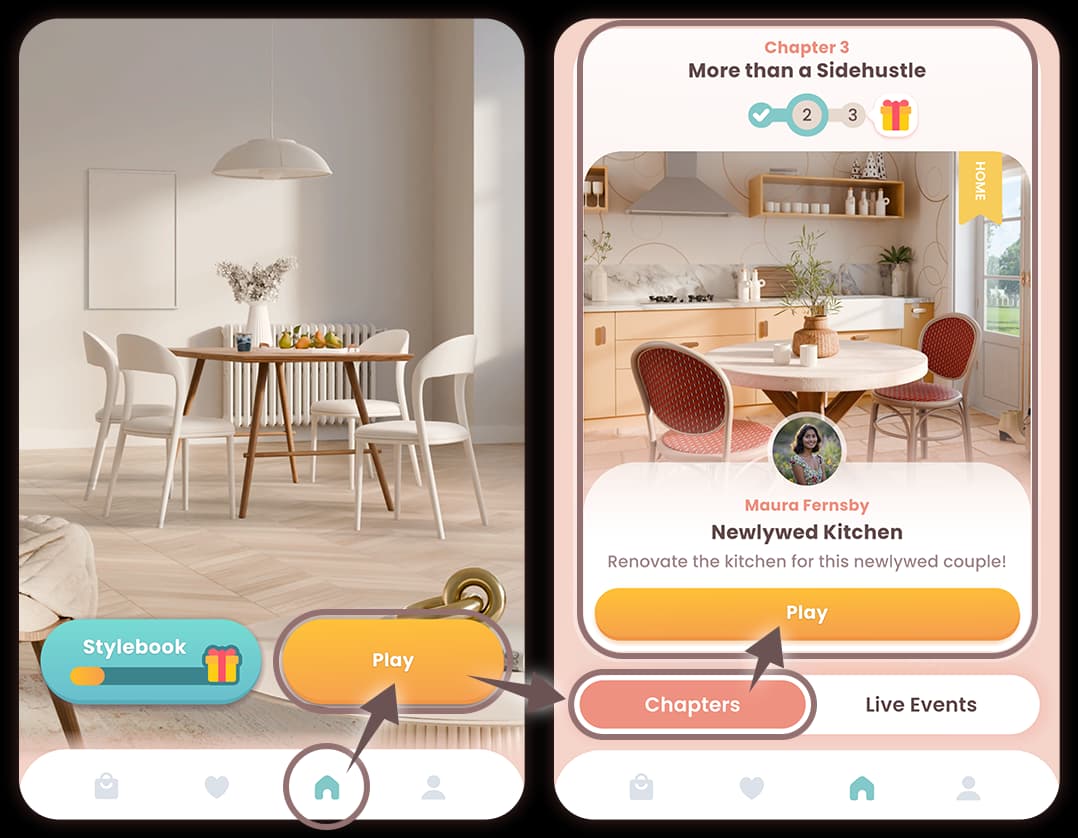
What are Chapters?
Chapters are a series of connected design events that follow a specific theme or storyline.
How They Work
- Each Chapter includes several design challenges tied together by a common location, character, or story.
- Completing all rooms in a Chapter gives you bonus rewards and a sense of progression through the narrative.
Why Play Chapters?
- You earn coins, gems, paintbrushes, and XP for each completed room.
- Completing a full Chapter may unlock special items or achievements.
- Chapters are always available and the new ones are released twice a week.
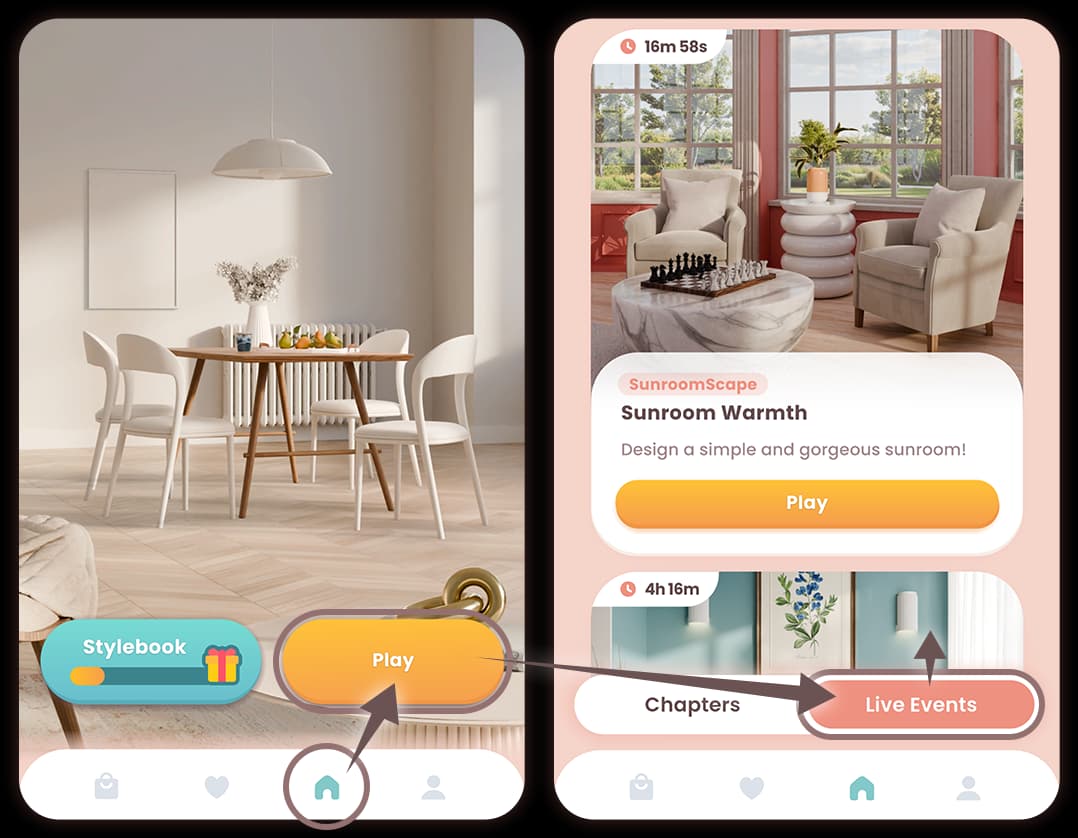
What are Live Events?
Live Events are special, time-limited design competitions where players from around the world decorate rooms and compete for top scores.
How They Work
- A Live Event typically lasts a few days and includes multiple design challenges.
- Your goal is to earn points by submitting designs and completing objectives.
💡 Tip: The more rooms you complete, the more points and prizes you’ll earn!
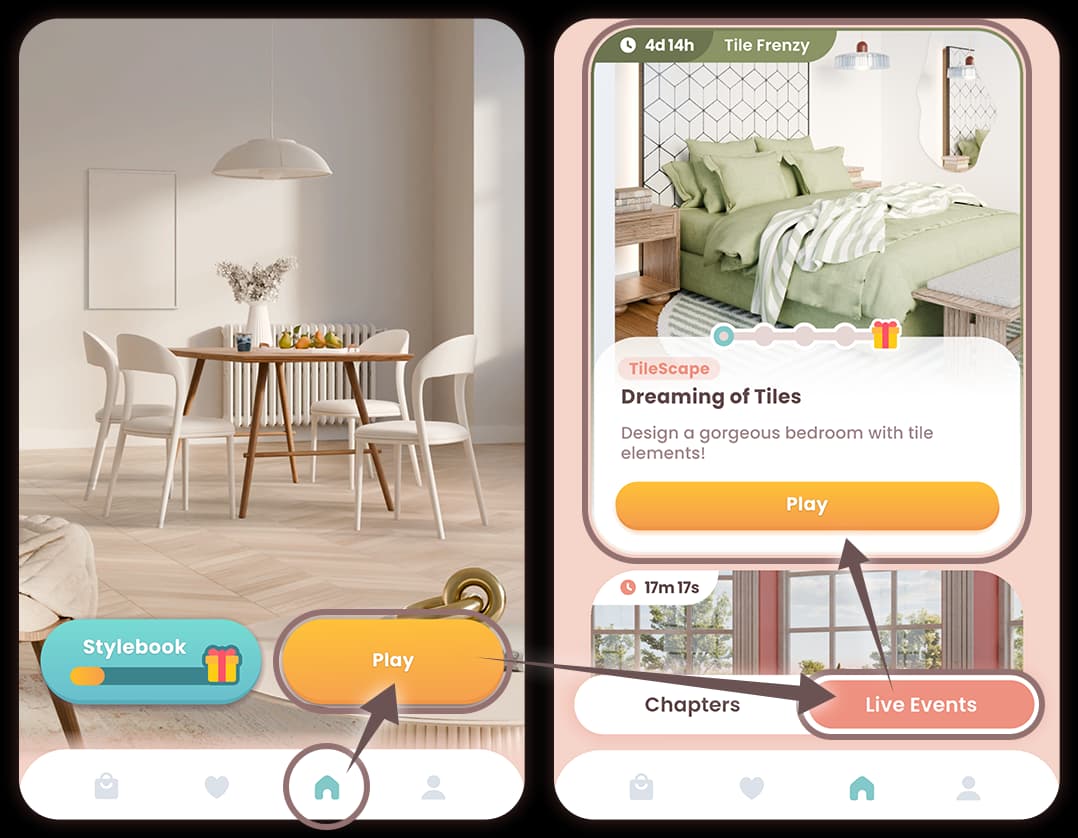
What are Limited Series?
Limited Series are special types of Live Events that come with a unique theme and exclusive rewards.
How They Work
- A Limited Series includes a set of exclusive design challenges tied to a specific event (like a holiday, location, or style).
- You earn event-specific points by completing designs within the series.
- These points help you unlock milestone rewards, and sometimes even exclusive furniture or styles.
Time-Sensitive Content
Limited Series are only available for a short period and do not repeat, so be sure to participate before they end!
Why They Matter
Often feature unique items that are not available anywhere else in the game.
A great way to boost your Design Pass progress and earn rare decor.
What are the Daily Top Designs?
Daily Top Design is a special community feature in Venue that highlights 5* player creations each day.
What it is
A daily spotlight showing off the most creative, stylish, or popular room designs submitted by players. Featured designs may be shared and also gather Likes from other players.
Why it matters
Get inspired by other designers, discover new styles, and see what’s trending in the Venue community.
How it’s chosen
Selections may be based on votes from other players or handpicked by the Venue team for creativity and design quality.
How to participate
Submit your best designs in regular or live events and vote in the community—you might just be featured!
Once your design is being featured, you will get an Inbox notification along with the reward to claim!
What is Daily Streak feature?
🔥 The Daily Streak is a feature that rewards you for designing every day.
Each day you complete one design (from a Chapter or Live Event), your streak increases by +1 day.
⏳ You can only progress once every 24 hours, so timing matters.
As you build your streak, you’ll unlock milestone rewards like:
- Coins
- Gems
- Items
- XP
What Happens If I Miss a Day?
- If you don’t complete a design before the timer runs out, your streak will reset to Day 0.
- But don’t worry,
- You never lose rewards you already claimed.
- Your Peak Streak (your highest-ever streak) is saved.
- You’ll receive Support Rewards every 7 days until you catch back up to your Peak Streak, so you still keep making progress even after a reset.
What is a Piggy Bank Feature?
A Piggy Bank is a mechanic in many mobile games where players gradually fill up a virtual savings bank by completing tasks, levels, or designs. Once it has enough “savings”, players have the option to “break” or purchase the Piggy Bank to collect the accumulated rewards (usually premium currency like gems).
Typical Behavior
- You complete design events or levels → a portion of the reward (like gems) goes into the Piggy Bank.
- The bank fills up over time as you keep playing and satisfying certain conditions.
- Once it’s full (or at a certain level), you can purchase it.
- Opening it gives you the saved-up rewards, which you couldn’t access before breaking it.
Important Things to Know
- Filling up is usually automatic based on your gameplay; you don’t pick what goes in each time.
- The cost to break the Piggy Bank may vary.
- The feature is often optional, you don’t have to use it to play the game, but it’s there for extra benefits or savings.
What are Endless Offers?
🪜 Endless Offers are a special reward system that gives players a mix of free and premium rewards like climbing up steps of a prize ladder!
How It Works
- You’ll receive a set of offers presented in a ladder format.
- The first 1 or 2 rewards are free, and you can claim them immediately.
- After that, a paid reward appears. If you choose to purchase it, you’ll unlock additional free items higher up the ladder.
Why It’s Called Endless
Each reward you claim lets you “climb” higher, unlocking more valuable and exclusive items as you go.
💎 Tip: Buying the paid offer is optional, but it lets you access the top-tier rewards not available otherwise.
What are Missions?
📝 Missions are short-term goals that help guide your gameplay and reward your progress.
How They Work
- Complete tasks like submitting designs, earning stars, or using specific items.
- As you complete missions, you unlock a series of rewards—including coins, gems, and exclusive décor.
- Finishing enough missions will unlock the grand prize, which is often a rare or premium item!
💡 Tip: Check the missions screen regularly to claim your rewards and track your progress toward the final prize.
📱 Account
How can I update my profile name and picture?
🧑🎨 Customizing your profile is easy!
Here's how:
✏️ To Change Your Name or Picture
- Tap the avatar icon (bottom-right on the home screen).
- Then tap the edit icon next to your name (pen icon) or picture (icon image).
- Enter your new name or choose a new avatar.
- Confirm your changes
How can I delete my account?
🗑️ If you wish to delete your Venue account, you can do it directly from the game.
Steps to Delete Your Account
- Open the game and go to the Settings menu.
- Click on the “Manage” next to your account
- Tap on “Delete Account”.
- Follow the prompts to confirm.
Important
This action is permanent and will erase all your progress, purchases, and data. (it happens automatically after 24 hours)
- Make sure you're absolutely sure before proceeding.
- If you would like to cancel Account deletion, reach out to us at support-venue@superbloomgames.com
How can I reset my account?
🔄 If you'd like to start fresh in Venue, you can reset your account from within the app.
Steps to Reset Your Account
If you want to reset your account, which means you only want to erase your progress but not Player ID or logging in method, reach out to our Customer Support team at support-venue@superbloomgames.com
Note
- Resetting will erase all your current progress, items, and designs.
- You’ll start over as if you were a new player but with the same Player ID.
- This action cannot be undone.
How can I recover my lost account?
😟 Lost your progress? Don’t worry—your Venue account can usually be restored.
Steps to Recover Your Account
- Make sure you're logged into the same account (Google, Apple, or Facebook) you originally used.
- Open Venue and check if your profile loads correctly.
Still not working?
- Contact our Customer Support team at support-venue@superbloomgames.com and make sure you have the following information:
- Your old Player ID (if you have it)
- Your username
- Any purchase receipts or screenshots that prove ownership
- Latest device you were playing on
- Location (country) from which you were logged in
How can I move my account to the new device?
How to Move Your Account to a New Device
- In the settings menu of the game, with the account you want to save, connect o Google, Apple, or Facebook account.
- Download Venue on your new device.
- Sign In using the same method (Google, Apple or Facebook).
- Launch the game and it should automatically load your existing progress.
How can I sign in through Facebook on iOS?
Facebook Login Not Working?
📲 If you’re having trouble signing into Venue using Facebook on iOS, it’s likely due to App Tracking settings.
Why This Happens
Facebook login requires App Tracking to be enabled—this is a setting controlled by Apple and Facebook, not by Venue.
How to Fix It
- Go to your iPhone’s Settings.
- Tap Privacy & Security → Tracking → Turn ON "Allow Apps to Request to Track".
- Then, go back to Settings → Apps → Venue → Turn ON "Allow Tracking".
- Once enabled, you should be able to log in via Facebook without issues.
💰 Purchases & Refunds
How can I get a receipt for my purchase?
🧾 If you made a purchase in Venue and need a receipt, follow the steps based on your app store:
For Apple Users
- Go to Apple's purchase history.
- Sign in with your Apple ID.
- Locate your Venue purchase and download or print the receipt.
For Google Play Users
- Visit Google Play order history.
- Sign in with the Google account you used for the purchase.
- Find your purchase and view the receipt details.
🛍️ These receipts are helpful if you need to request a refund or contact support.
How can I get a refund for a purchase?
💸 If you made a purchase in Venue by mistake or had an issue, you can request a refund directly through your app store:
For Apple Users
- Go to Apple’s refund request page.
- Sign in with your Apple ID.
- Find your Venue purchase and follow the steps to request a refund.
For Google Play Users
- Visit Google Play refund request page.
- Select your purchase.
- Choose a reason and submit your request.
📝 Note: All refund decisions are handled by Apple or Google and not by the Venue support team.
💎 VIP Subscription
What is VIP and how do I sign up?
👑 VIP is an optional monthly subscription that gives you access to a collection of exclusive perks designed to make your Venue experience even more fun and rewarding. As a VIP member, you’ll enjoy:
- Premium Design Pass included every month
- Early access to new chapter events (play them a full week early!)
- Exclusive daily VIP-only Live Events with extra design choices
- VIP Prize Wheel with bigger rewards and bonus spin options
- Unique characters and pets avatars available only to VIP members
- Exclusive profile frames to customize your look
- You can sign up by tapping any VIP button or banner in the game, recognized as a gold card with a crown emblem, such as:
- The 👑VIP badge on the home screen
- The 👑 VIP card in the Shop
- The 👑 VIP Early Access panel at the end of a chapter
- Any place where you try to access VIP avatars, frames, titles, or events
- This will bring you to the VIP purchase screen, where you can choose between weekly, monthly, or yearly subscription options. The subscription activates immediately, and all perks become available right away.
Where can I find the VIP terms?
You can review the full 👑 VIP Subscription Terms at any time here:
www.venuegame.co/vip-subscription-terms
This page explains what is included in the subscription, renewal information, cancellations, and your rights as a subscriber.
I want to purchase VIP but already purchased the Design Pass
If you already purchased the current Premium Design Pass, you can still subscribe to 👑 VIP. As a compensation for this benefit, you’ll receive a one-time gem gift when you subscribe, equal to the value of the pass you already owned.
Once you become VIP, the Premium Design Pass is fully included every month, no additional purchase needed!
What happens to my VIP content if my subscription expires?
When your subscription ends:
- 👑VIP benefits stop immediately, including Early Chapter Access, VIP-only Live Events, the VIP Wheel, and access to VIP avatars, frames, and titles. You can still view your earlier submitted VIP events however.
- Any 👑VIP-exclusive avatar or frame you were using is removed, and your profile reverts to using non-VIP options.
- If you earned rewards from a VIP Event you already submitted, you can still claim those voting rewards, and you will not lose any earlier claimed voting rewards.
- If your subscription ends between chapters, you’ll switch back to the regular release schedule, which may include a waiting period before you can play the next chapter.
- If you owned a Premium Design Pass before subscribing, you keep that pass even after VIP expires. Otherwise, the Design Pass is deactivated immediately.
Managing my iOS VIP subscription
- On iOS, all VIP subscriptions are managed directly through your Apple ID.
- Prices, renewal terms, and payment schedules are shown in the App Store at checkout.
- Your subscription 🔄 automatically renews unless canceled at least 24 hours before the renewal date.
- Apple handles all billing, receipts, and refund decisions.
You can review or manage your subscription here:
Apple App Store → Your Profile Picture → Purchase History
You can find more information from Apple here: support.apple.com/en-gb/guide/iphone/iph4e3e7324f/ios
Managing my Android VIP subscription
- On Android, VIP subscriptions are managed through the Google Play Store.
- Subscription details, renewal dates, and payment confirmations are handled by Google Play.
- Your subscription will 🔄 auto-renew unless canceled ahead of time.
- Depending on your region, Google Play may offer introductory pricing or promotions.
You can manage your subscription here:
Google Play Store → Profile Icon → Payments & Subscriptions → Subscriptions
You can find more information from Android here: support.google.com/googleplay/answer/7018481
How do I cancel my VIP subscription?
Subscriptions can only be canceled through the platform where you purchased them:
❌ On iOS
- Open Apple App Store
- Tap your Profile Icon
- Tap Purchase History
- Select Venue VIP
- Tap Cancel Subscription
❌ On Android
- Open the Google Play Store
- Tap your Profile icon
- Tap Payments & Subscriptions
- Select Subscriptions
- Choose Venue VIP
- Tap Cancel Subscription
Your benefits remain active until the end of the current billing period.
How do I restore my VIP subscription?
If you changed devices or reinstalled the game without first linking your game to an Apple, Google or Facebook ID, you may lose access to your VIP subscription. If you did link them before, it should restore automatically after you log in.
If it didn’t restore, you can trigger a manual restore:
- Go to Settings → Restore Purchases (you can find it below the FAQ button)
- This should show a message asking you to restart the game. Tap the Restart button
- If after the restart your benefits still don’t appear, contact our customer support
🫂 Social
What is the Friend ID and how do I change it?
Your Friend ID is the user ID generated for your Social Profile and start with an "@". Your friends and fellow designers can find you through this ID, and it is unique to your account, so two accounts will never share the same ID. You can find it on your Profile, and you can tap on it to copy it and share it with others.
If you would like to customize your friend ID, you can update your it anytime from your Profile by following these steps:
- 1- Go to your "Profile" in the bottom-right corner,
- 2- Tap on the Edit button,
- 3- Tap on the ✏️ icon to edit,
- 4- Enter the new ID you would like to use.
- Since every ID is unique, if the one you want is already in use, you will simply need to pick a different one. Your friend ID should be consisted of only English letters and number and it should contain at least one letter.
One thing to remember, your fellow designers can still find you with your old friend ID for 7 days if you decide on changing it.
How do I follow a designer in the community?
- Adding a friend:
- Once you have the Friend ID of a fellow designer, go to your "Profile" and tap the "➕Add Friend" button located in the middle-left area on your screen. Enter their ID and hit enter, and their profile will appear. From there, simply tap the "Follow" button next to their name. You can also share your own ID from your Profile so other designers can add you the same way.
Adding a friend does not mean they will follow you back. It is up to each designer to grow their community but it is always nice to stay connected 🫂.
---
- Other places to add:
- You can also use profiles of the other designers to follow them. When you see a designer's name, for example in Top Designs feed, just simply tap on it and you will see their profile. Over there, the follow icon is located on the upper-right area. Once you find someone whose style you love, simply tap the icon to add them to your community.
You can also share your designs and your Friend ID in our official Facebook group to meet and interact with more people!
What are Following, Followers, and Favorites?
Following and followers are your design community and you are able to choose to grow your own unique community to share your designs and follow other designers and their work by simply tapping their profiles or viewing them over Friends' Designs tab!
---
Following: Once you follow a fellow designer, they appear in your "Following" tab on your Profile. If you no longer wish to see a profile and their designs, you can unfollow them by tapping the same icon, and they will be removed from your feed.
Followers: If someone follows you, they appear in your "Followers" tab, and you can decide whether to follow them back.
Favorites: If there is a friend whose profile you would like to access more easily, tap the ❤️ icon next to their name to add them to your Favorites for a quicker access.
What are Friends' Designs?
The "Friends' Designs" tab is where you can see the designs shared by the fellow designers you follow. You can find it next to your profile button and browse their latest creations there anytime.
You can interact with their designs by liking them. If you would like to see designs from more people, follow more designers using their Friend ID, and their posts will start appearing in this tab as well.
If your feed is empty, you can always follow others that are recommended to you to grow your community!